1 · Getting Started
1.1 Signing in
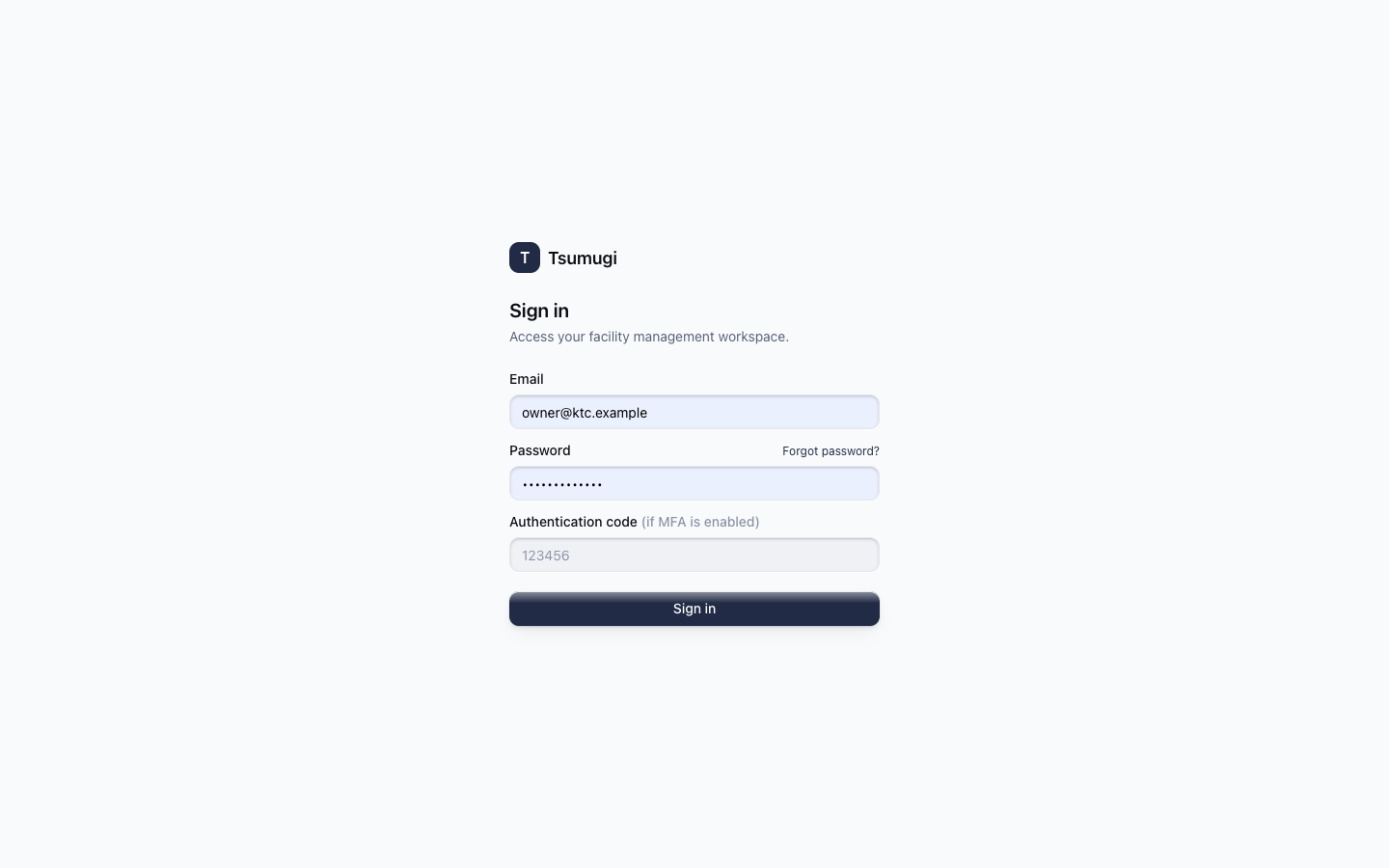
- Open https://tsumugi.nxfusion.cloud.
- On the landing page, click Sign in (top-right).
- Enter your email and password.
- Click Sign in. You land on your Dashboard.
If the password is wrong you'll see "Invalid email or password." — the same message for an unknown email, so no one can probe which accounts exist. If you don't have an account, ask an administrator to invite you.
1.2 The workspace layout
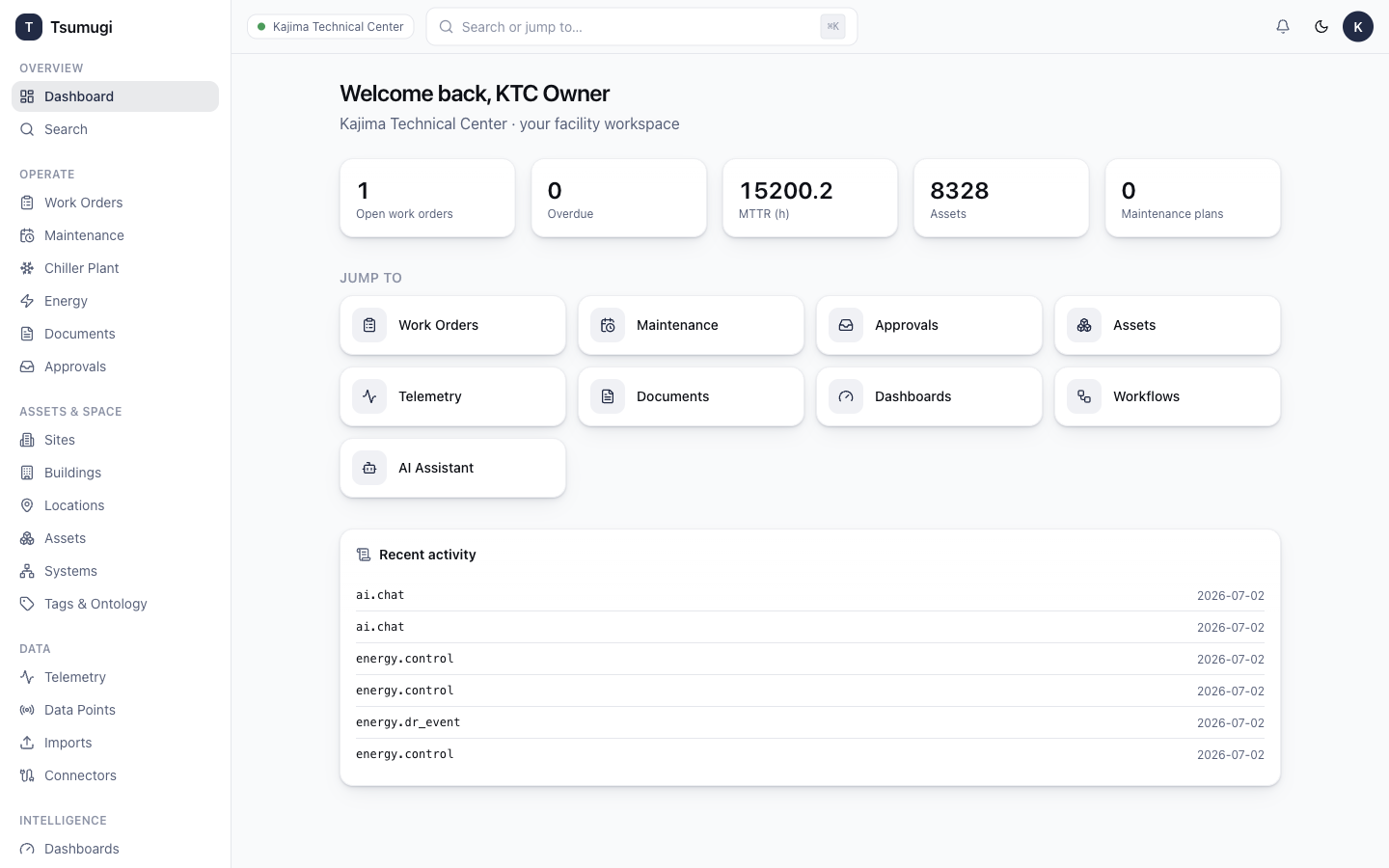
Every screen shares the same frame:
- Left sidebar — grouped navigation: Overview, Operate, Assets & Space, Data, Intelligence, Admin. You only see groups your role can use.
- Top bar — the tenant you're in (e.g. Kajima Technical Center), a global search box (shortcut ⌘K / Ctrl-K), the notifications bell, the theme toggle, and your account menu.
- Main area — the current page.
1.3 Navigating
- Click any item in the left sidebar to open it.
- Press ⌘K (Mac) or Ctrl-K (Windows/Linux) anywhere to jump to a page or record by name.
- The nav is permission-filtered — if you can't see a module, your role doesn't grant it.
1.4 Switching light / dark theme
- Click the moon / sun icon in the top bar.
- The whole app switches between light and dark. Your choice is remembered next time you sign in.
1.5 Signing out
Open the account menu (your initials, top-right) and choose Sign out.
Next: 2 · Dashboard & Search →