3 · Work Orders & Maintenance
3.1 Work Orders
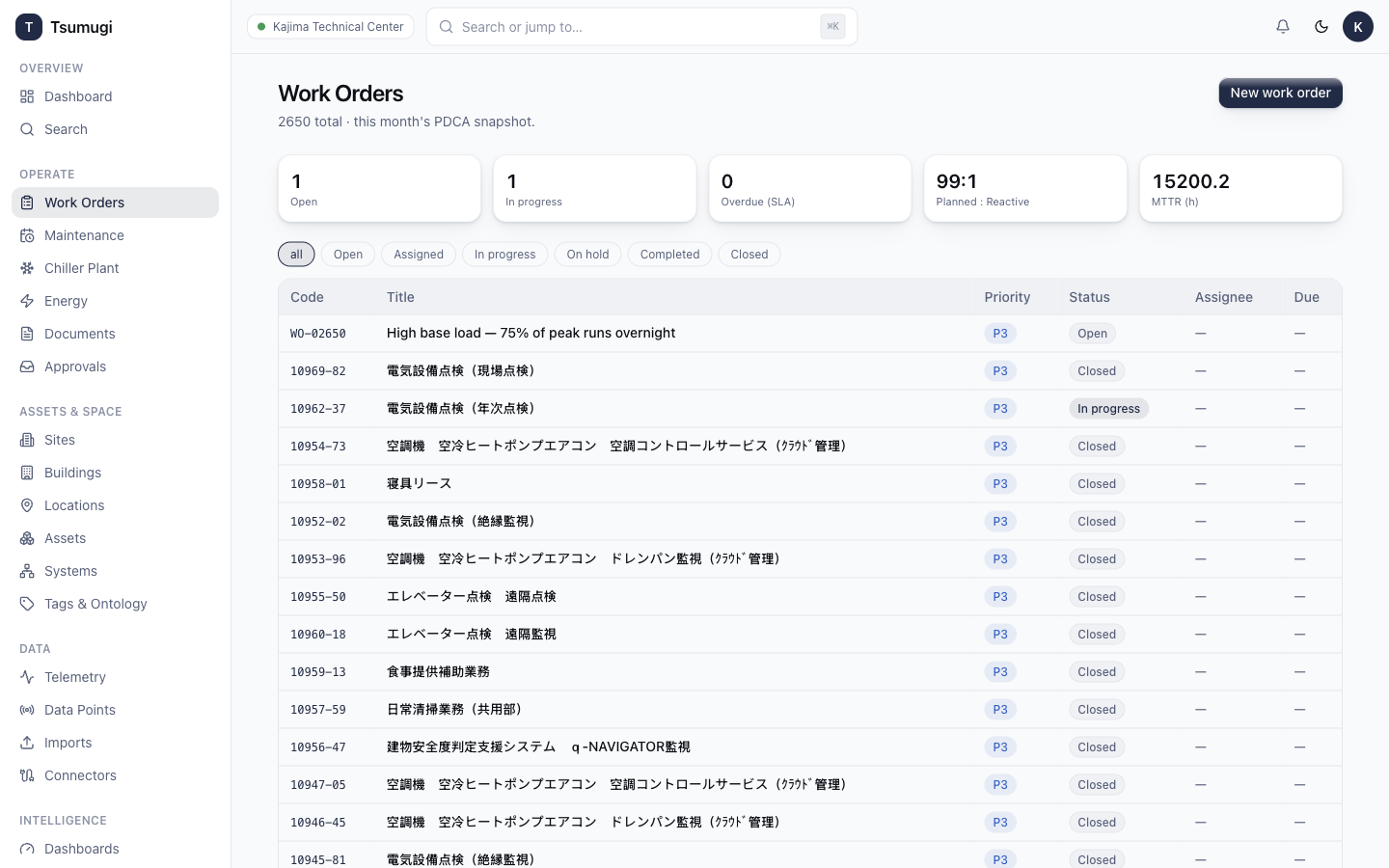
Open Operate → Work Orders. Each work order has a code, title, priority (P1–P4), status, and optional asset, assignee and checklist.
Raise a work order
- Click New work order (top-right).
- Fill in title, priority, category (planned / reactive / inspection / audit), and optionally link an asset and assignee.
- Click Create. It appears in the list with status Open and a unique code (e.g.
WO-02651).
Work through its lifecycle
Open a work order to move it along its states — the app only allows legal transitions:
Open → Assigned → In progress → Completed → Verified → Closed (with On hold and Cancelled available where valid).
- Assign it to an engineer (they receive a notification).
- Start work — the timer begins.
- Tick off the checklist, add notes and costs (labour / parts / vendor).
- Complete, then Verify and Close.
Every change is written to the audit log with who/what/when.
3.2 Maintenance plans
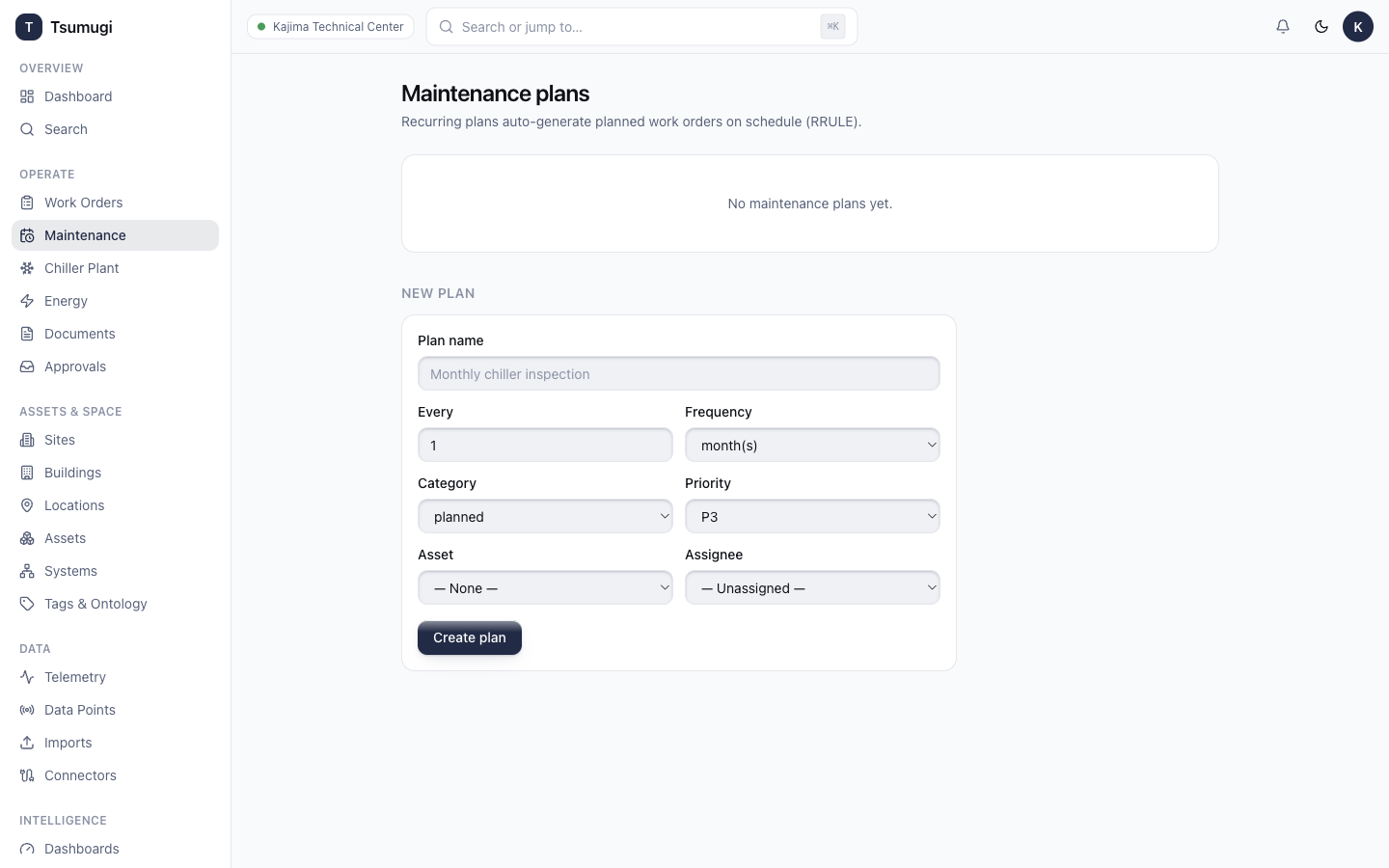
Open Operate → Maintenance to schedule recurring planned maintenance.
Create a maintenance plan
- Click New plan.
- Set the name, asset/location, category, priority and assignee.
- Define the schedule (a recurrence rule — e.g. monthly, quarterly).
- Build the procedure steps — drag to reorder them. These flow into each generated work order's checklist.
- Save. On each due date the plan auto-generates a work order with the checklist ready.